Setup
Agentic AI runs inside the Creator and uses the AI agent of your choice as the chat surface. Both ends are configured from the Configuration page.
What you need
The Creator, signed in to your ORamaVR account.
An MCP-capable AI agent running on your machine — Claude Code, Codex, GitHub Copilot Chat, or any other client that uses the Model Context Protocol (MCP).
Note
We recommend Claude Code as the agent client. The Agentic AI workflow is currently tuned and validated against it, so other MCP-capable clients may produce less reliable results.
Run the Agentic AI configuration task
In the Creator, open the Creator Panel and go to the Configuration panel.
Locate the Unity MCP configuration task. If it is listed, one or more prerequisites are missing and need to be resolved. If the task is not shown, your project already meets every requirement and you can move on to the next step.
Click Fix on the task. Creator installs and enables anything that’s missing.
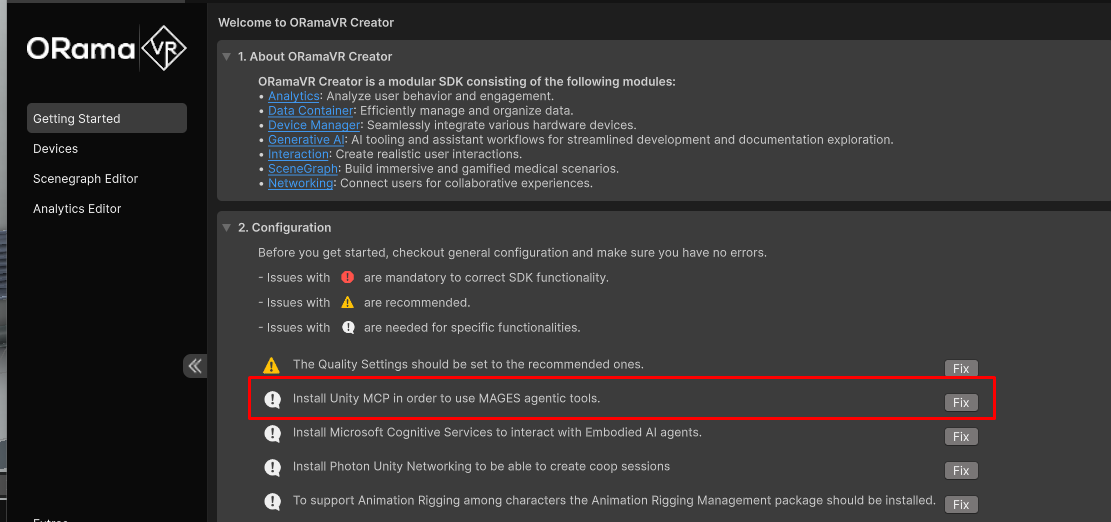
Connect your agent
In Unity, go to Edit -> Project Settings -> AI -> Unity MCP Server. Scroll to the bottom and find the Integrations section. Click Configure on your selected agent to connect it to the Creator MCP server.
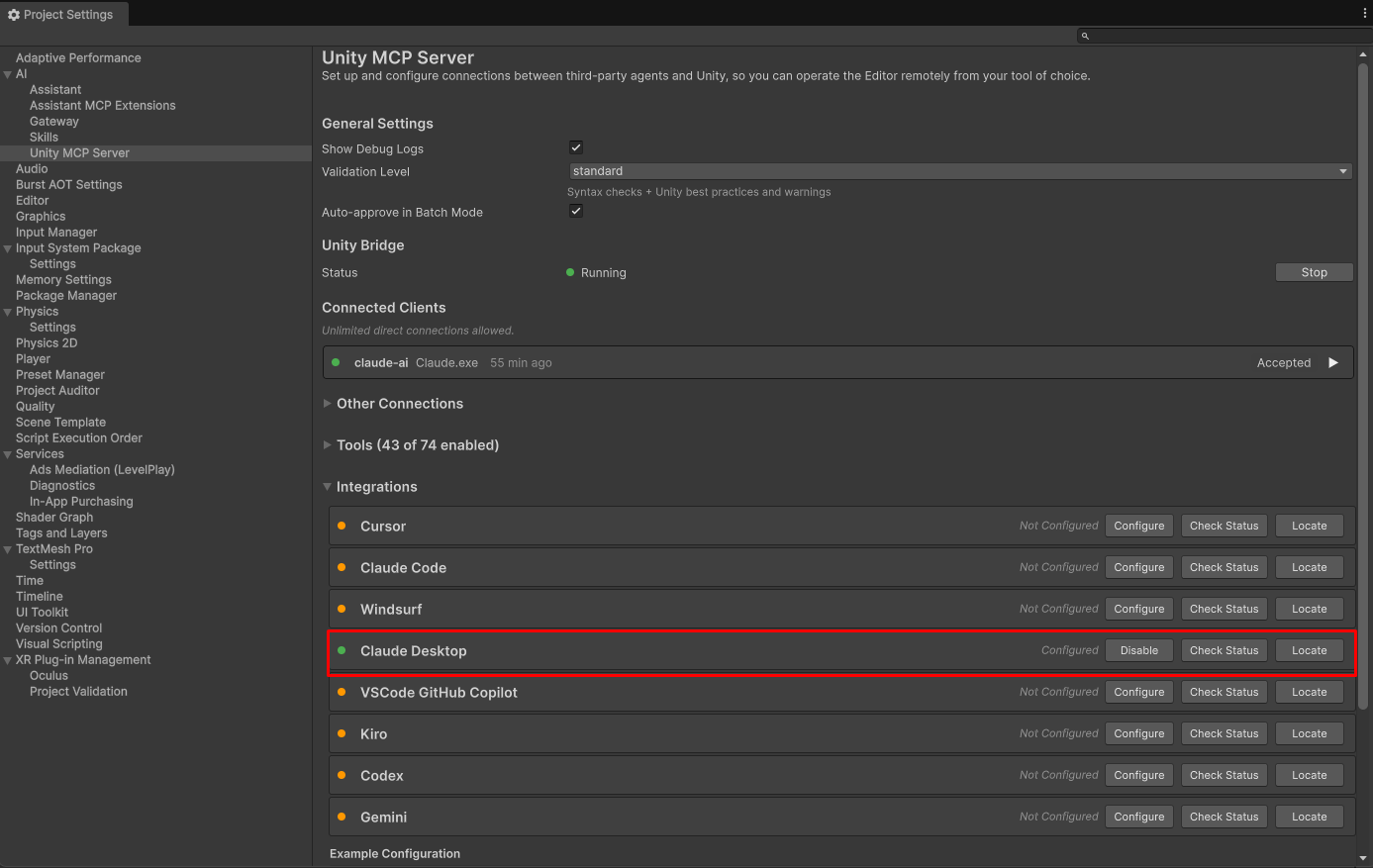
Note
You can use Claude Code through the CLI by selecting Claude Code, or through the desktop app by selecting Claude Desktop.
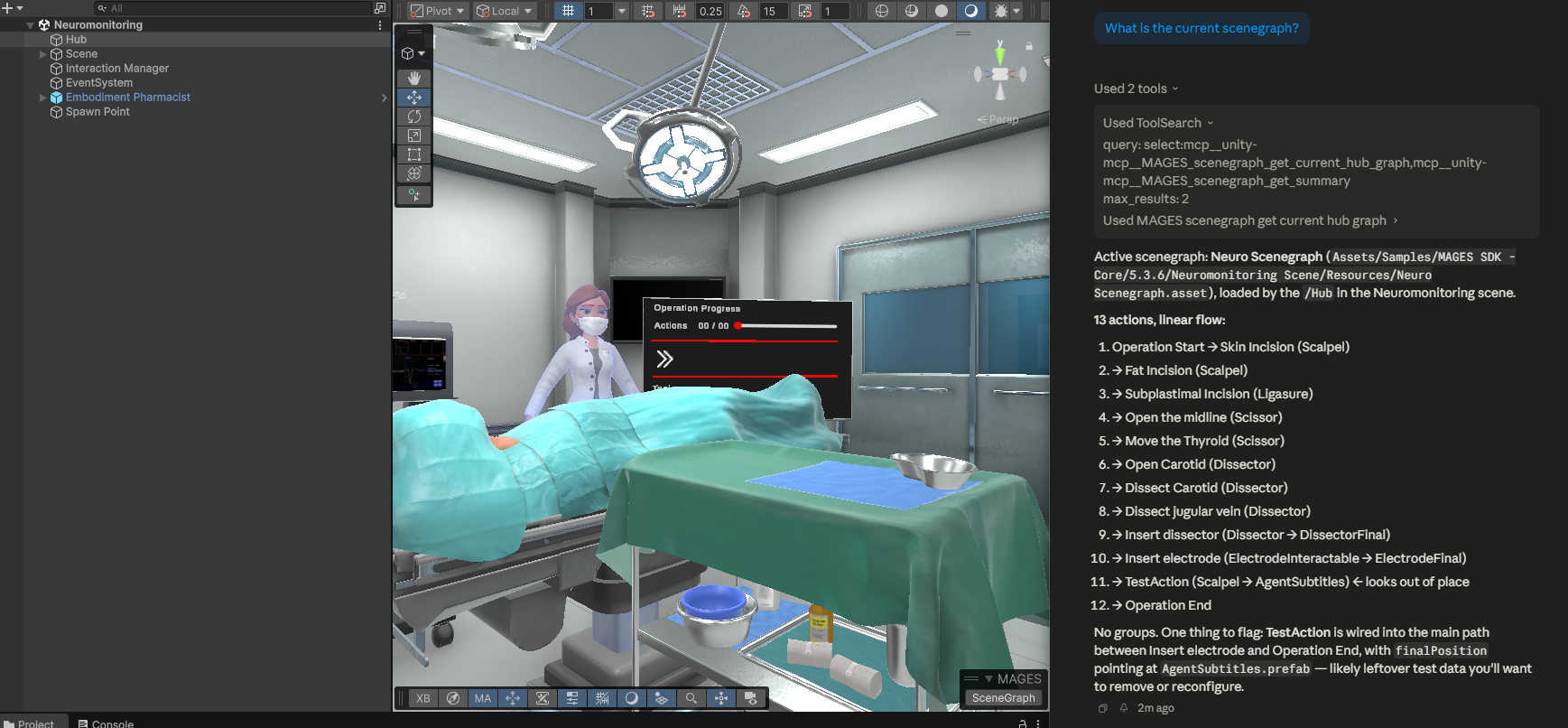
That’s it — see Tutorials & Examples for walkthroughs of the authoring tasks the agent can now run.