Storyboard Generation
A Storyboard is the procedural plan of an XR simulation — the sequential, parallel and conditional steps a trainee must perform — expressed as a flow graph that can later be imported into a Creator SceneGraph. This is a solution to produce storyboard utilizing an LLM with natural-language procedure descriptions.
Storyboard Generation is a cloud feature delivered through two surfaces:
The ORamaVR Portal is where the storyboard lives end to end: you generate a draft from a procedure description (or import one from PDF), refine the visual graph in the Storyboard Editor, and walk it action by action in the Storyboard Inspector to regenerate images and per-action fields.
The Creator SceneGraph is where the finished storyboard is imported from the cloud so it can drive the rest of the Creator authoring pipeline.
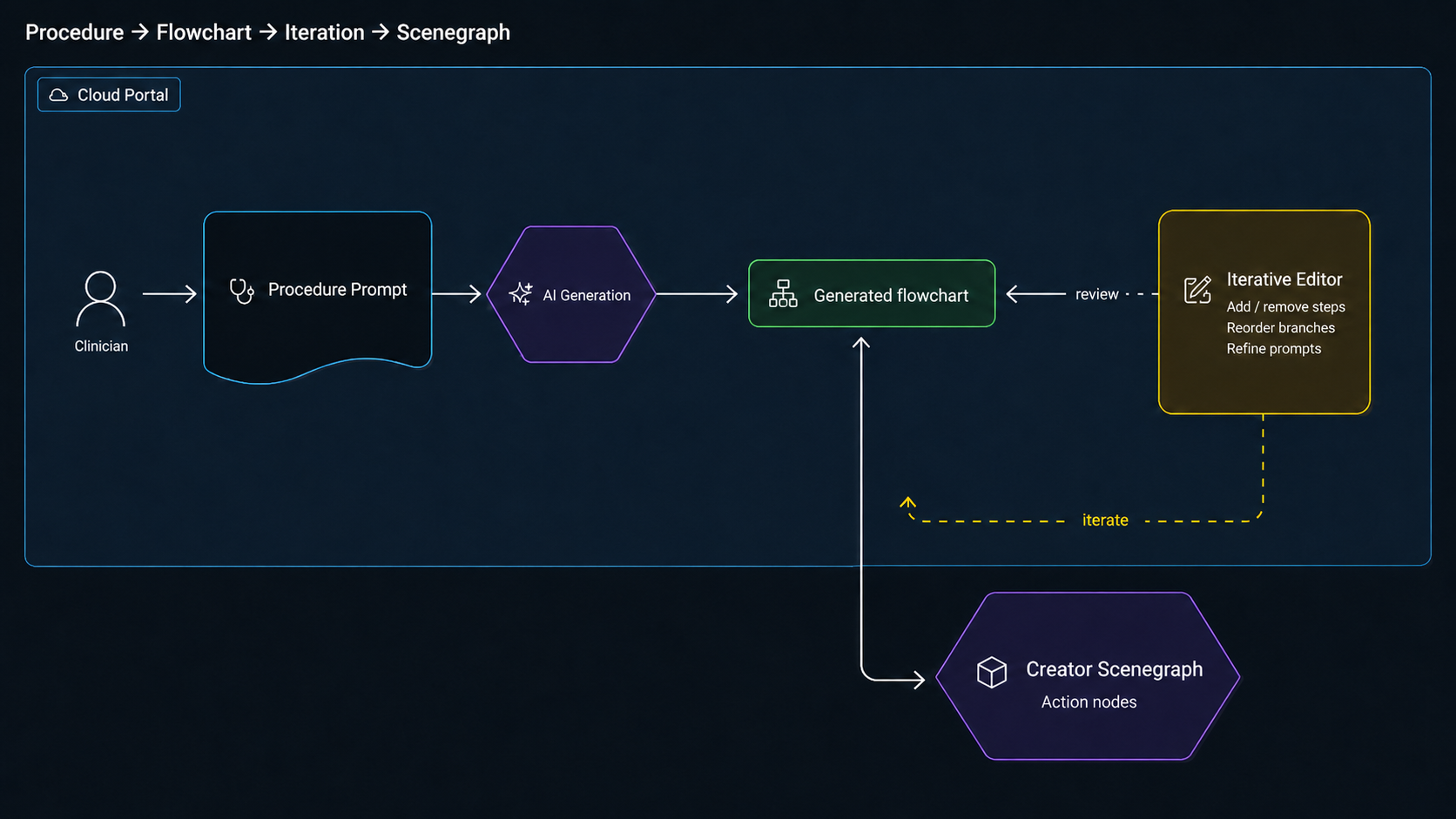
The end-to-end loop: a procedure description becomes a storyboard in the Portal, then imports into the Creator.
What a storyboard contains
A storyboard is a flow graph of a procedure stored in the cloud. Each storyboard carries:
Actions – the individual steps a trainee performs, typed by the kind of interaction they require (Insert, Use, Remove, Trajectory, Question, …).
Edges – flow connections between actions, including parallel branches and conditional decision points.
Groups – stages or chapters that bundle related actions together (e.g. Preparation, Insertion, Closure).
Scenario objects – a flat catalog of the tools, anatomy and instruments referenced anywhere in the actions.
End-to-end flow
The flow below is what most teams follow on a fresh procedure.
Describe the procedure in the Portal. Either type a natural- language description into the Storyboard Generator, or import a procedure PDF that the Portal extracts text from.
The LLM agent plans the storyboard. It produces the actions, their types, the flow edges (including parallel branches and conditional paths), the group structure, and the scenario object catalog.
Refine the storyboard in the Storyboard Editor. Reorder actions, split or merge groups, tweak labels — the Editor keeps the visual layout and the underlying graph aligned.
Inspect the storyboard action by action in the Storyboard Inspector. Regenerate the illustrative image for one action, or re-plan a single action’s fields, without disturbing the rest of the graph.
Save the storyboard. The Portal persists the visual layout, the structured graph and the scenario object catalog as a single versioned cloud artefact.
Import the storyboard from the Creator. From inside the Creator, browse cloud storyboards and pull the one you want; it becomes the starting point for the rest of the Creator authoring pipeline (lowering to a SceneGraph, attaching prefabs, and so on).
The two surfaces
The Portal
The ORamaVR Portal owns the authoring part of the loop. Three pages cover the full lifecycle:
Storyboard Editor – visual graph builder for refining the flow: drag to reorder, group, label.
Storyboard Inspector – per-action review with image regeneration and field-level re-planning.
Storyboard Catalog – objects and tools referenced in the storyboard.
Generating, importing from PDF, refining, inspecting and saving all happen here. The Portal is also where the storyboard is stored: the cloud holds the canonical copy, and every other surface reads or writes through it.
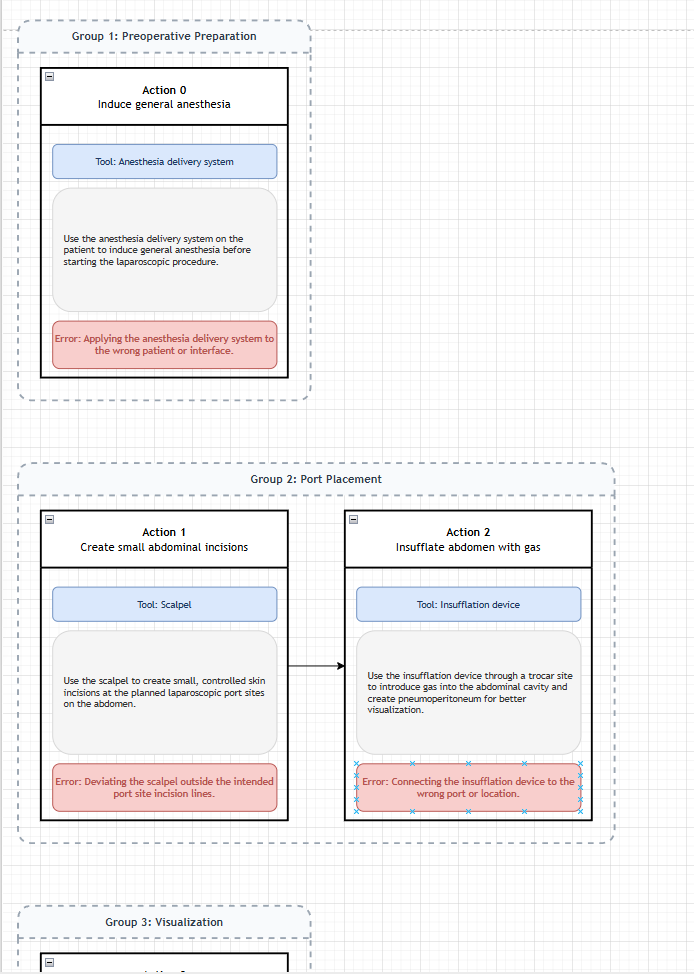
Editor¶ |
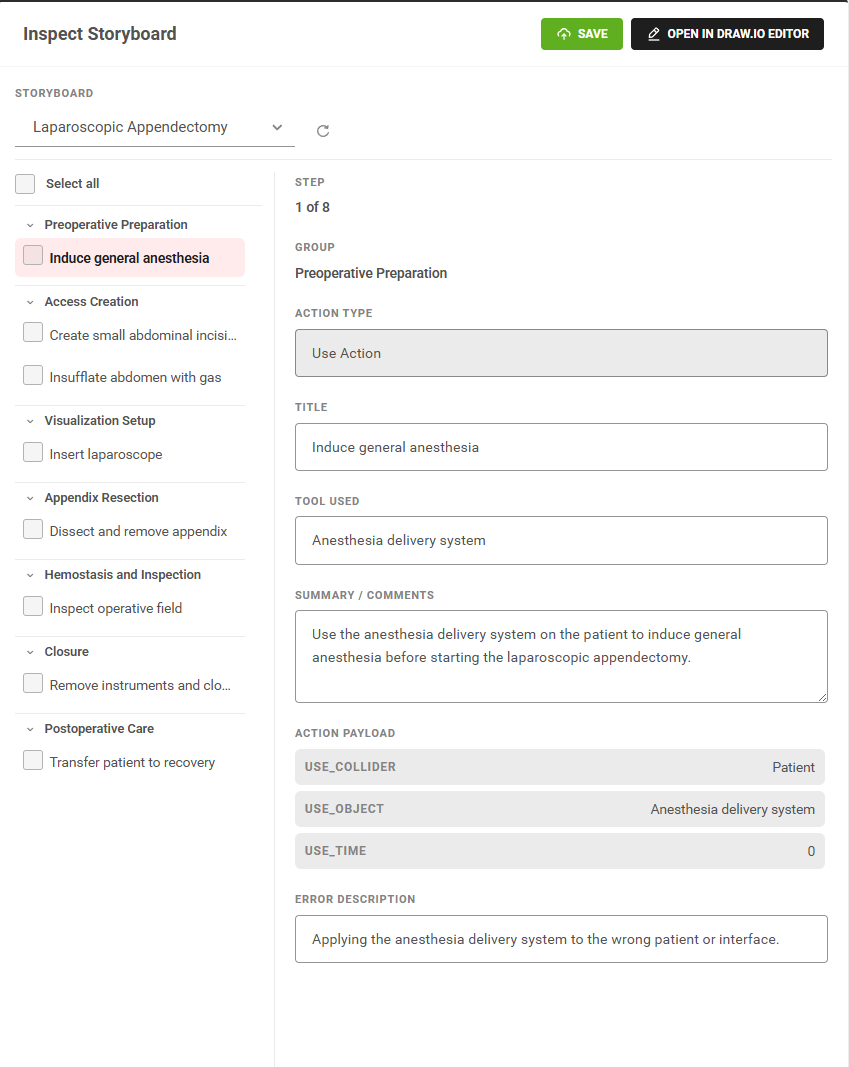
Inspector¶ |
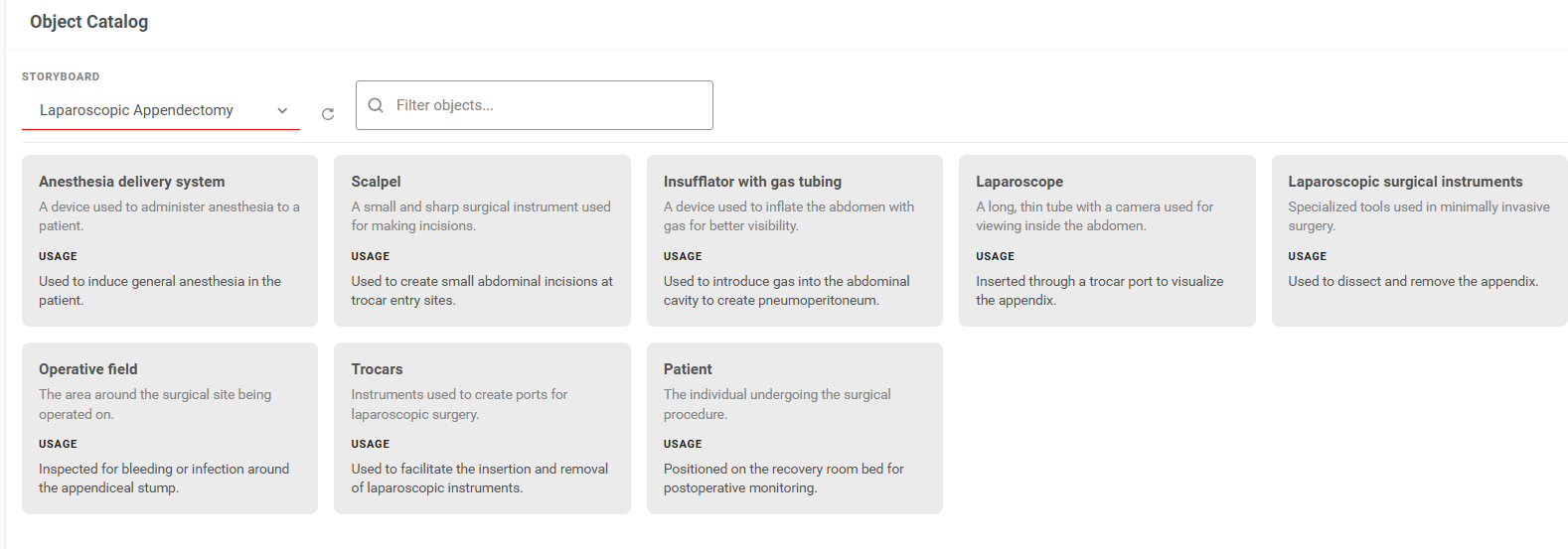
Catalog¶ |
The Creator
The Creator owns the import half of the loop. From inside the Creator you can browse the cloud and bring a saved storyboard into your project, where it becomes the input to the rest of the Creator authoring tools. Generation, editing and inspection are not done here — those stay in the Portal.
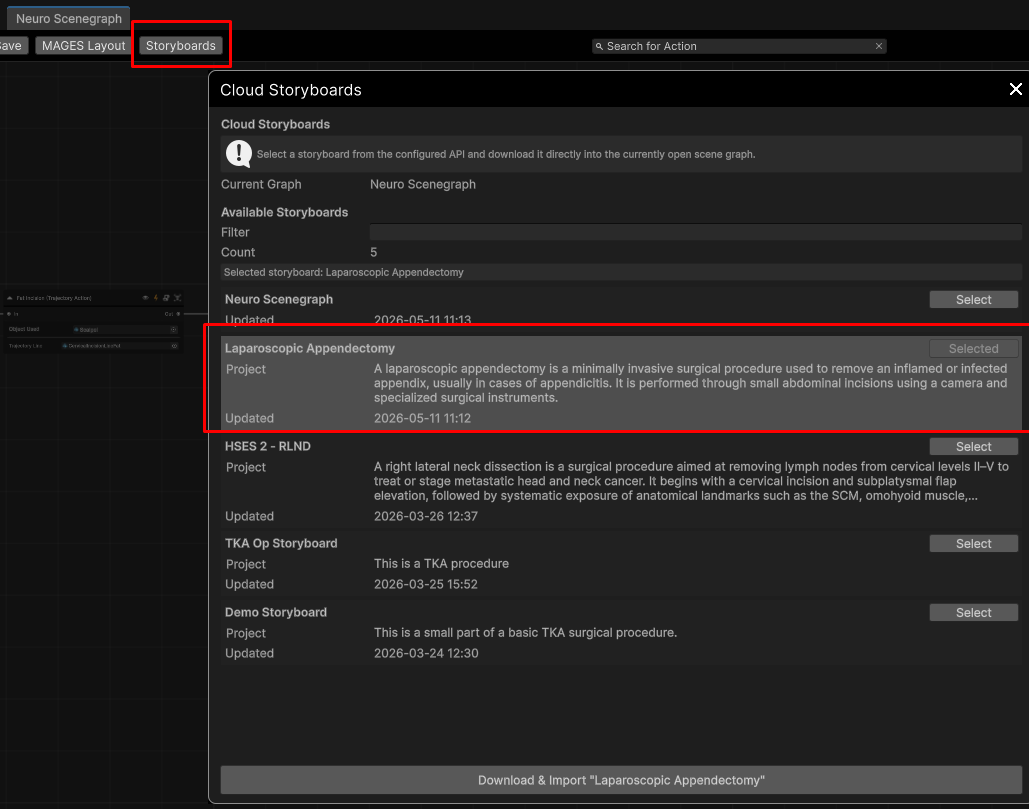
Inside the Creator, browse cloud storyboards and pull one into your project to feed the rest of the authoring pipeline.
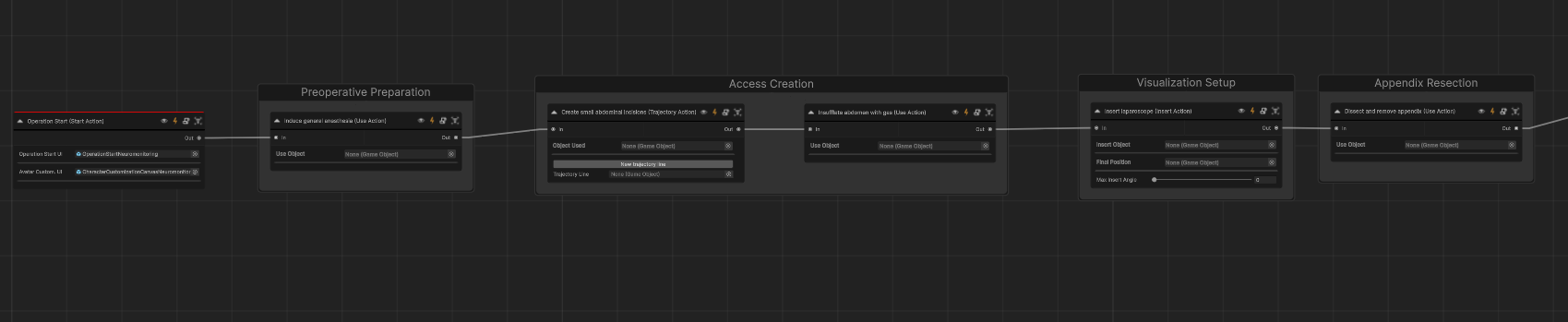
The imported storyboard appears inside the Creator, ready to drive the rest of the authoring pipeline.
Things worth knowing
The Portal is the source of truth. Saved storyboards live in the cloud; the Creator pulls a snapshot when it imports.
Re-prompting re-plans the whole graph. If you regenerate from a description, you start over. Use the Editor for layout changes and the Inspector for per-action edits.
Inspector edits are local to one action. Regenerating an image or re-planning a field on one action keeps the rest of the storyboard stable.