Scenegraph Editor v2
Goals
The SceneGraph Editor v2 updates the scene graph format and the editor. It has the following goals:
Increase overall performance while editing actions
Pose a more intuitive and consistent interface for editing
Fully support undo/redo as well as copy-paste operations
Use a single json file that is easier to modify even outside of unity or the scene graph editor
Be fully backwards-compatible with the current file format and allow for converting to and from it.
How to use
You can open Scenegraph Editor v2 in three ways:
From Unity’s top bar, choose
ORamaVR Creator > Scene Graph Editor 2. This will open the Home page which shows all of the available graphs.
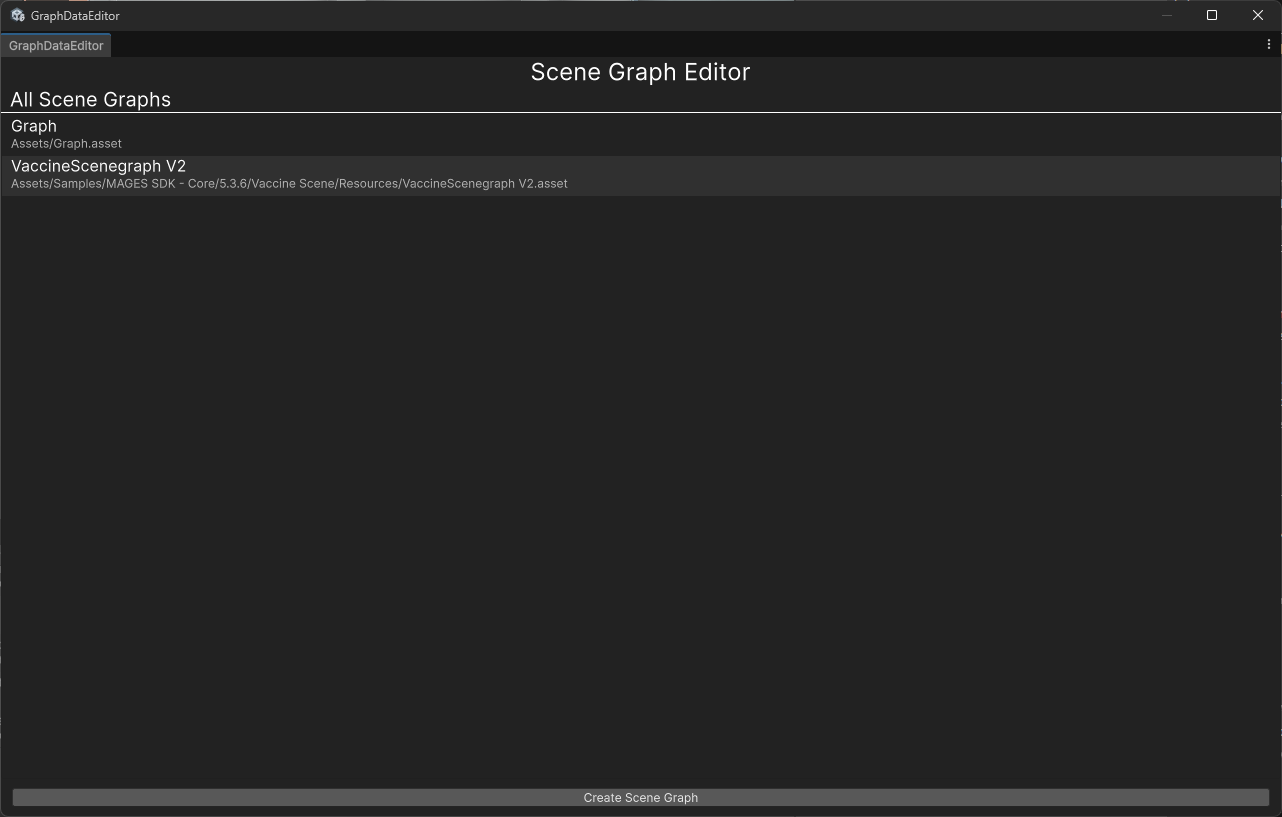
Double click any existing
GraphDataSerializedasset in theProjectwindow.Select a legacy
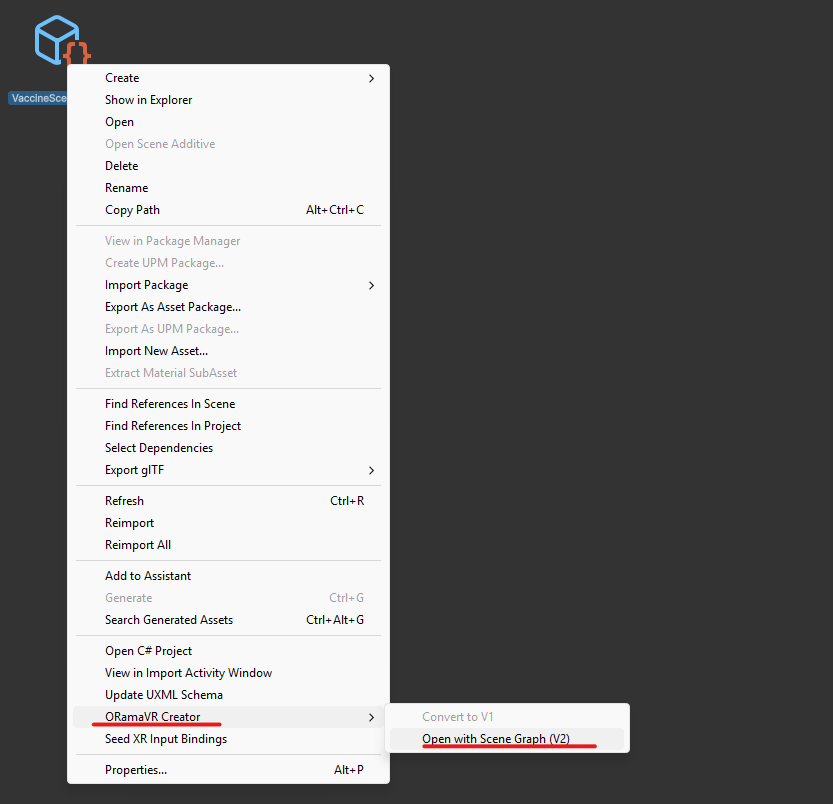
SceneGraphDataasset, right click it, and chooseORamaVR Creator > Open with Scene Graph (V2).
Main editor
The main v2 editor combines a graph canvas on the left with a dedicated inspector on the right.
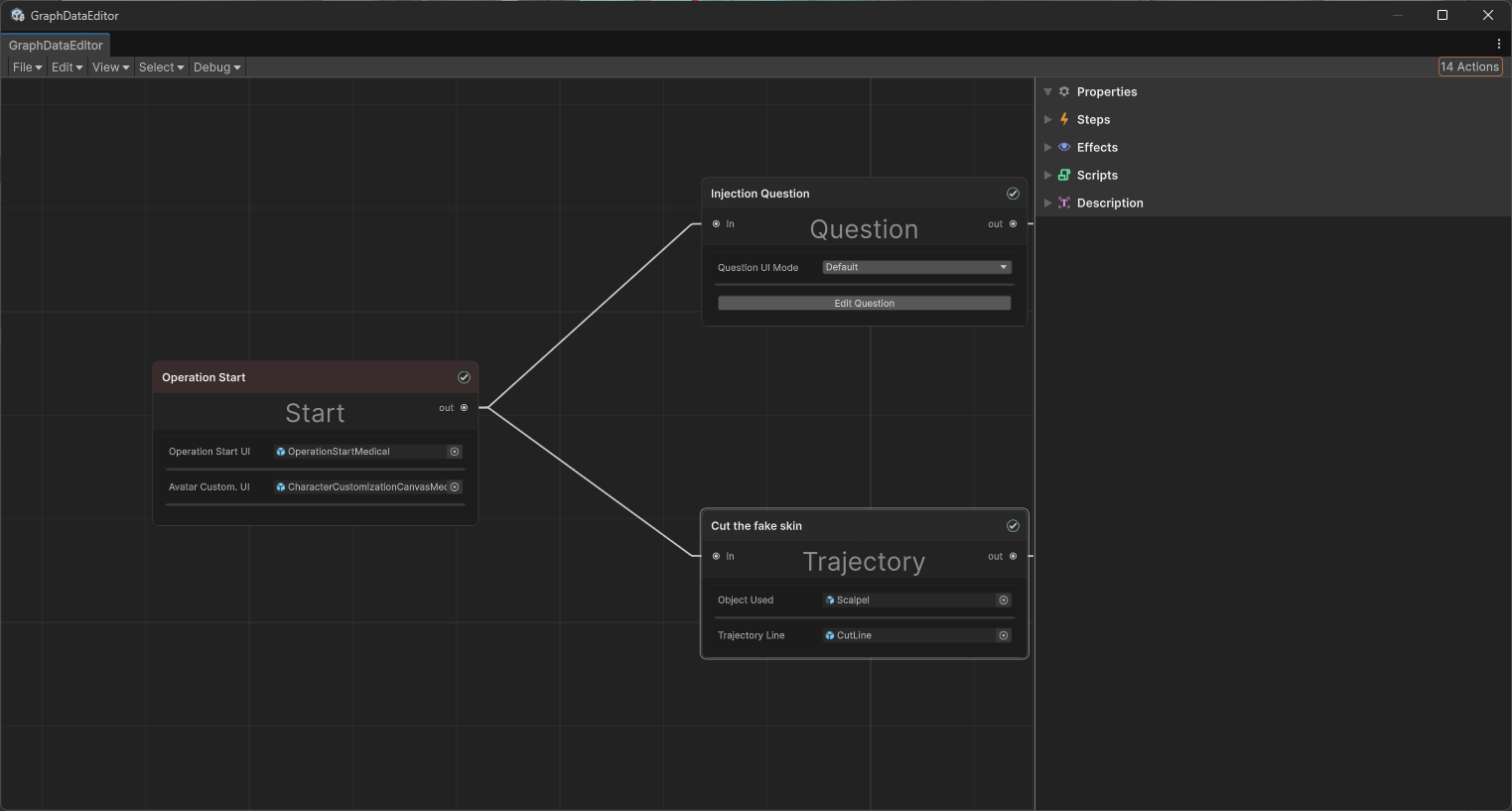
The toolbar contains the following groups:
Menu / Area |
Explanation |
|---|---|
File |
Save the current v2 asset, create a new copy with |
Edit |
Undo and Redo graph changes. |
View |
Open the command palette and toggle the minimap. |
Select |
Frame the whole graph or only the current selection. |
Action counter |
Shows how many Actions currently exist in the graph. |
Inspector panels
Selecting a node opens its properties, steps, effects, attached scripts and description in the right side inspector.
Additionally, the advanced mode properties in the old scene graph will now only be displayed in the “Properties” foldout on the inspector.
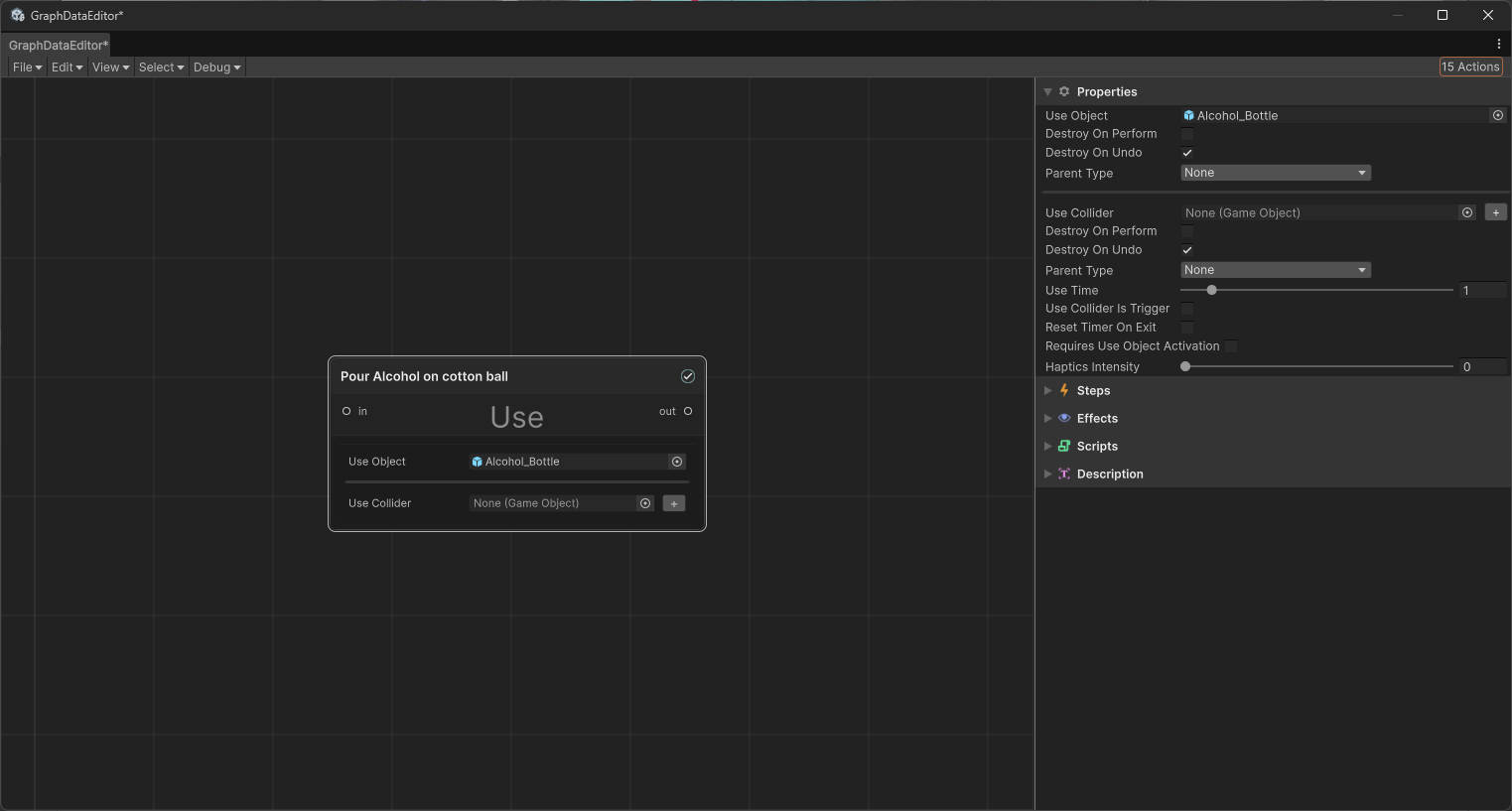
The inspector is split into foldout panels:
Panel |
Explanation |
|---|---|
Properties |
The serialized fields for the selected Action. Includes the advanced properties. |
Steps |
A new step container editor which exposes more sections than the old one. For each event there is now a “Before” and “After” section |
Effects |
The old effects editor with not many changes to the layout. |
Scripts |
The attached scripts container |
Description |
The action description. It is useful here to add either TODOs, or more information for the action |
What changed
Compared to the legacy Scenegraph editor, v2 introduces these workflow changes:
A dedicated v2 asset type. Scene Graph v2 stores graph data inside a single json file (
GraphDataSerialized) instead of separate assets for each node.A unified inspector workflow. Properties, Steps, Effects, Scripts, and descriptions now live together in the same side panel for the selected node. You can view and edit them all at once.
Built-in migration from v1. Existing
SceneGraphDataassets can be opened with v2 from the asset context menu.Save as a new asset. You can duplicate or branch a graph with
File > Save As.Export back to v1 when required. A v2 graph can be converted back to a v1 asset from the asset context menu with
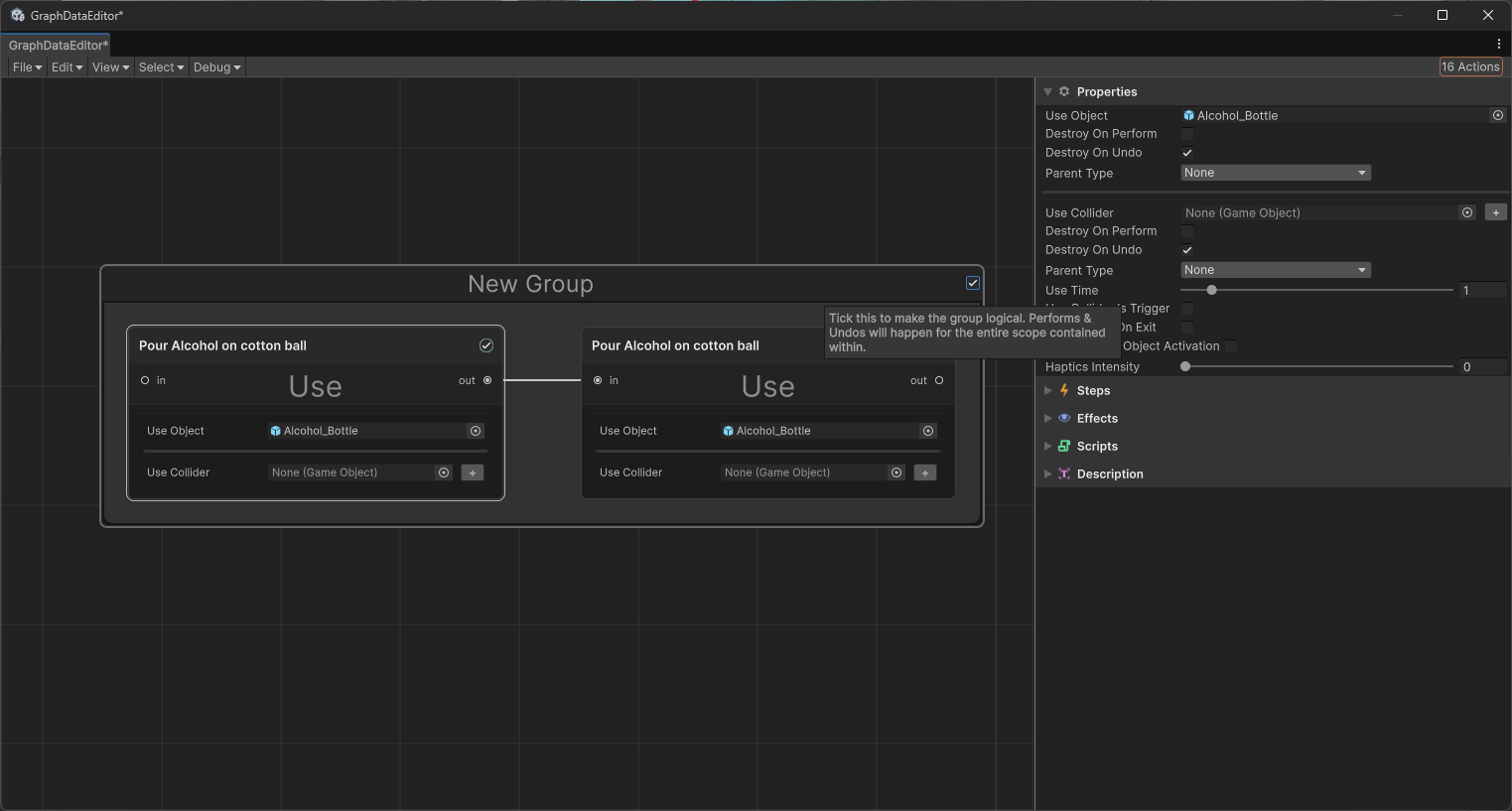
ORamaVR Creator > Convert to V1.The group action has now been moved to the “Groups” feature of v1: Create a group, and tick the checkbox on the top left to make the section synchronously perform/undo.
Compatibility with v1 graphs
Scenegraph Editor v2 is designed to coexist with the legacy workflow:
Use
Open with Scene Graph (V2)when you want to start from an existing v1 graph.Save the converted result as a new
GraphDataSerializedasset.Use the asset context menu option
ORamaVR Creator > Convert to V1if you need a v1 output again for an older workflow.
For a step by step migration guide, see Scenegraph_V1_To_V2.