Detailed Overview
This page describes what Agentic AI exposes to the connected agent: the families of tools available, what each one does, and the patterns the agent follows when it combines them.
What the agent works with
Every Agentic AI tool operates on one of three things in the Creator:
The SceneGraph of the active project — the actions, the flow between them, and the groups they belong to.
The action objects and action references — interactable prefabs, trigger volumes, and the placement metadata that ties them to the scene.
The loaded scene — used to answer queries about which scene objects exist, where they sit, and what the user’s spawn point is.
The agent never edits files blindly. Each tool call is a typed request the agent issues against the Creator, with clear inputs and a structured response.
Tool families
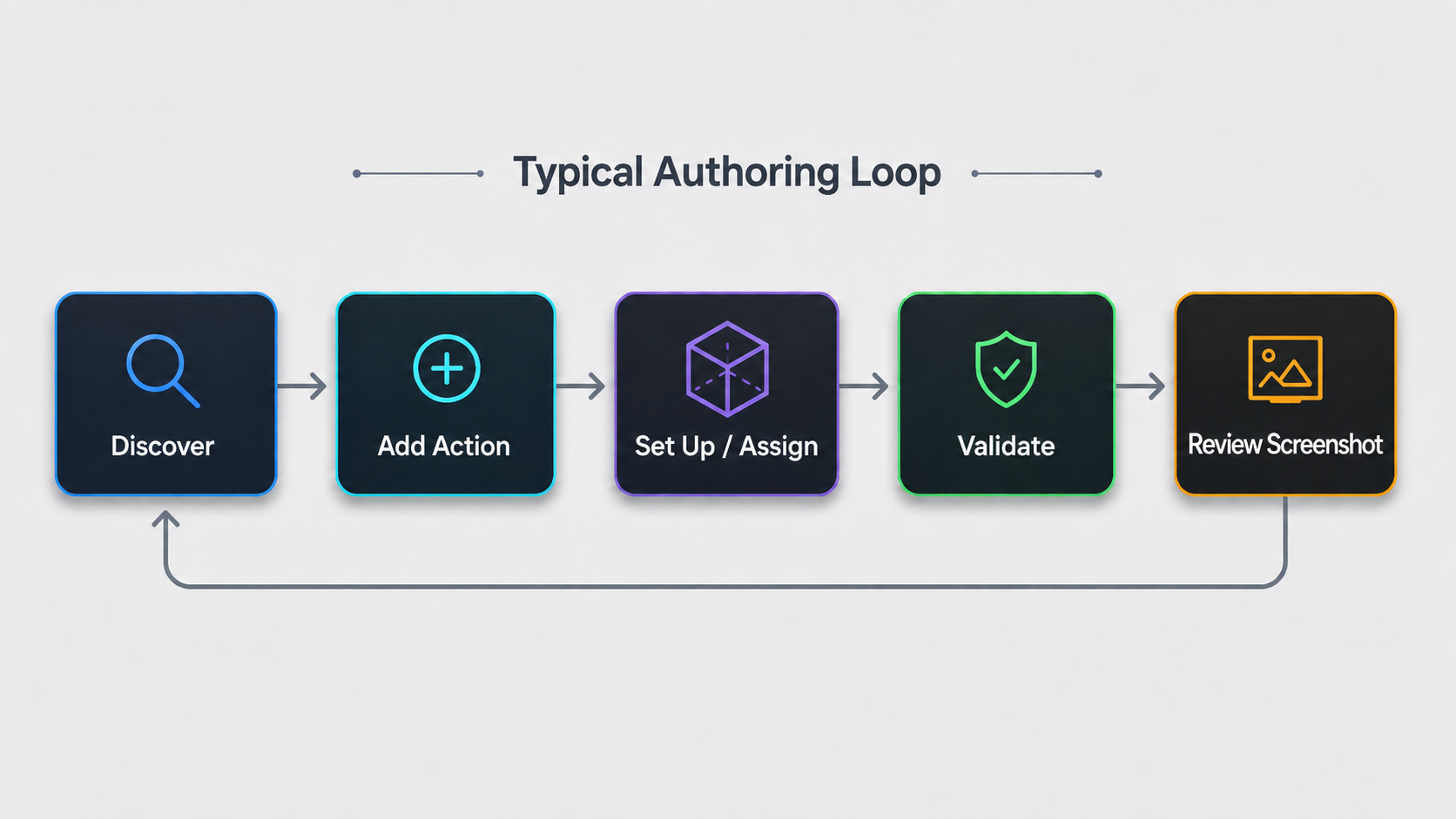
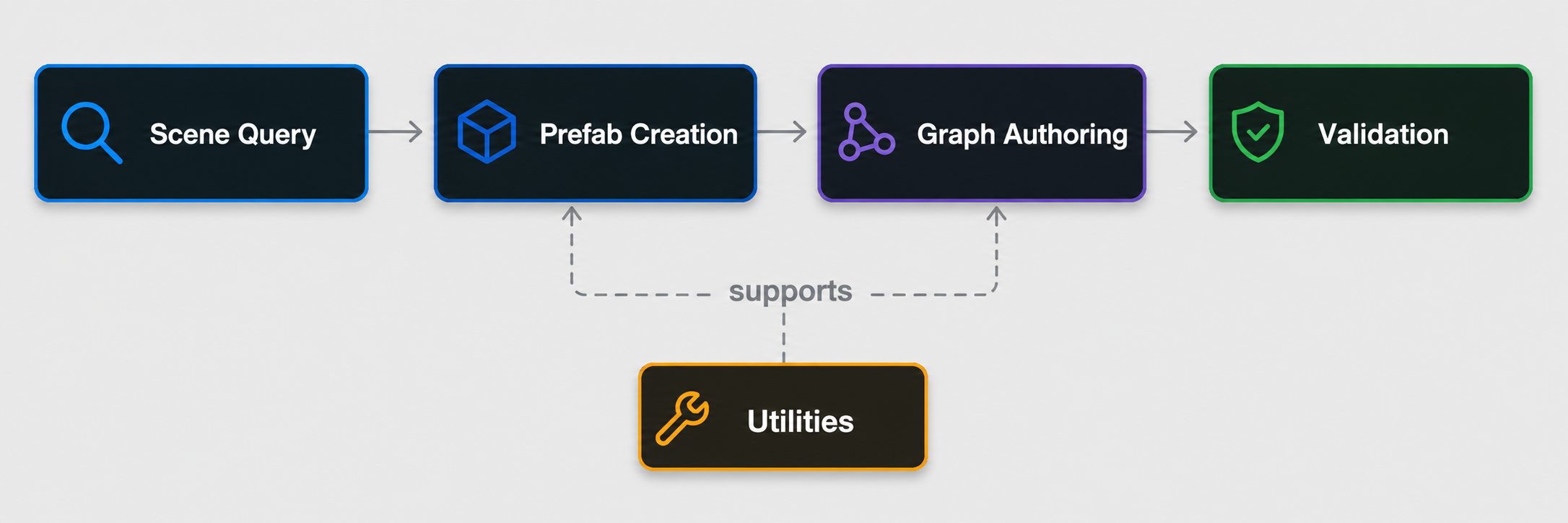
The tools are organized into five families. Within each family the tools are sequenced so an authoring task usually moves left to right: discover → set up → assign → validate.
SceneGraph authoring
These tools author and modify the SceneGraph itself: discover the active graph, add or remove actions, wire them together, and validate the result.
Get the current SceneGraph. Resolves the active SceneGraph in the open scene and returns a structured summary of its actions, flow connections and groups. This is the agent’s standard entry point for any authoring task.
Get a specific SceneGraph by name. Returns the same structured summary for a SceneGraph the user names explicitly.
Add an action. Creates a new action node of a chosen type and optionally wires it into existing actions, either inline in a chain or as a parallel branch.
Connect / disconnect actions. Add or remove the flow link between two existing actions, including wiring into AND/OR logic gates.
Create a logic gate. Adds an AND or OR gate node that converges parallel branches — AND when all branches must complete, OR when any branch can continue and the others undo.
Delete an action. Removes an action node from the graph while respecting start/end constraints.
Configure Use / Insert / Remove actions. Type-specific tools that fill the fields of an existing action node — the use object and use colliders, the insert object and final position, the remove object — once the action has been created.
Assign an action object. A general-purpose tool that writes a prefab reference into any action object field on any action type.
Validate an action. Spawns the action’s currently configured prefabs in the scene, captures a screenshot for review, and cleans up. The agent uses the screenshot to confirm placement and collider geometry before declaring a task done.
Action object prefab creation
These tools turn arbitrary scene objects, model assets, or textual descriptions into prefabs that fit the strict component layout Creator expects on action object fields, and they handle the derived prefabs that mirror a primary action object.
Create an action object prefab with placement. Promotes a candidate from the open scene (or a model asset) into a saved prefab and computes a placement context for the action’s slot. The agent uses this whenever it cannot find a suitable existing prefab.
Create a Use action trigger collider. Generates a lightweight trigger volume for a Use action: no mesh or render-replica, just the trigger collider needed to detect that the use object has reached the use area.
Create an Insert action final position. Generates the trigger zone where an inserted object should end up. The output mirrors the source object’s geometry, flips its colliders to triggers, and strips interaction components so the result is a passive trigger volume baked at the placement anchor.
Decide and apply parenting. Decides whether an action object should be parented under an authored scene anchor (versus spawned at a world position) and applies the corresponding metadata.
Scene query
These tools read the loaded scene; they do not modify anything.
Find scene objects. Searches the loaded scene with partial, hierarchy-aware matching across object names, hierarchy paths, and prefab metadata. Used when an exact-name search would miss nested objects (for example a bowl nested inside a larger Tools Table prefab).
Get the default spawn point. Returns the default spawn point in the loaded scene if one exists. Used to anchor placements relative to the user’s spawn (e.g. “in front of the user”).
Analytics authoring
These tools author the analytics rules attached to an action — the ones that score a trainee’s behavior at runtime.
Add a collision error. Adds or updates a collider-based error on an action: which collider, which primary object, the error type, the penalty, and the collision direction.
Add a time error. Adds or updates a time-based error on an action — for example a maximum duration the trainee should not exceed.
How the agent uses the tools
A few patterns recur across most authoring tasks. Knowing them makes it easier to predict what your agent will do — and to intervene when it picks the wrong path.
Discover the SceneGraph first. The agent’s first call is almost always get the current SceneGraph. Skipping this step is the most common failure mode; if you see your agent guessing at action names, ask it to start over by reading the graph.
Adding an action is never the final step. Every action type has a matching set-up or assign tool that fills its required fields. An action with empty primary fields is incomplete.
Validate visually. The validation tool is the cheapest way to catch placement and collider mistakes before runtime — the agent should bake it into the end of any prefab-authoring workflow.
Derived fields are never searched independently. An Insert action’s final position and a Use action’s trigger collider are derived from their primary counterpart. The agent should always use the dedicated derivation tools rather than running a separate search.