Tear Action
Tear Action is a SceneGraph action that completes once the user has torn apart one or more authored regions of a deformable object. Each region is defined as a set of tetrahedral volume constraints on the target’s simulation mesh. The action monitors those constraints for destruction and completes after every authored cut has been fully torn.
Prerequisites
Before creating the action, make sure your scene already contains:
A Mesh Deformations actor on the object you want to tear (for example a Softbody Actor or Dynamic Softbody Actor). The actor must be a deformable target with tetrahedral volume constraints in its Simulation Mesh.
A Volume Constraints Destruction Detector on (or above/below) that actor’s GameObject. The detector is what the action listens to in order to know which constraints have been destroyed.
Important
The target must carry a BasePhysicsActor with a valid simulation mesh.
At runtime the action adds the detector automatically if one is missing, but a resolvable detector must already exist while you author the cuts so the scene selection tool can render and pick the volume constraints.
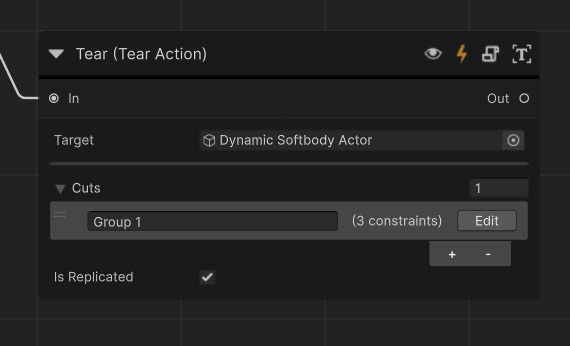
How To Set Up The Action
Create a Tear Action in the SceneGraph.
Add a new SceneGraph action of type Tear Action and place it where you want the tearing step to happen in the procedure.
Assign the Target.
Set Target to the deformable object whose volume constraints will be cut. This must be the actor (or a reference resolving to it) that owns the tetrahedral simulation mesh you want to tear.
Enable advanced mode to author the cuts.
The Cuts list is only shown in the inspector’s advanced mode. Switch the action inspector to advanced mode to reveal it.
Add one or more cuts.
In the Cuts list, add an entry for each region that must be torn apart. Every entry contains:
Description: an author-facing label for the cut, shown in the list and in the scene-tool overlay.
Volume Constraints: the tetrahedral volume-constraint indices that make up the cut. These are authored visually, not by hand (see below).
If you author multiple cuts, all of them must be fully torn before the action completes.
Select the volume constraints for each cut.
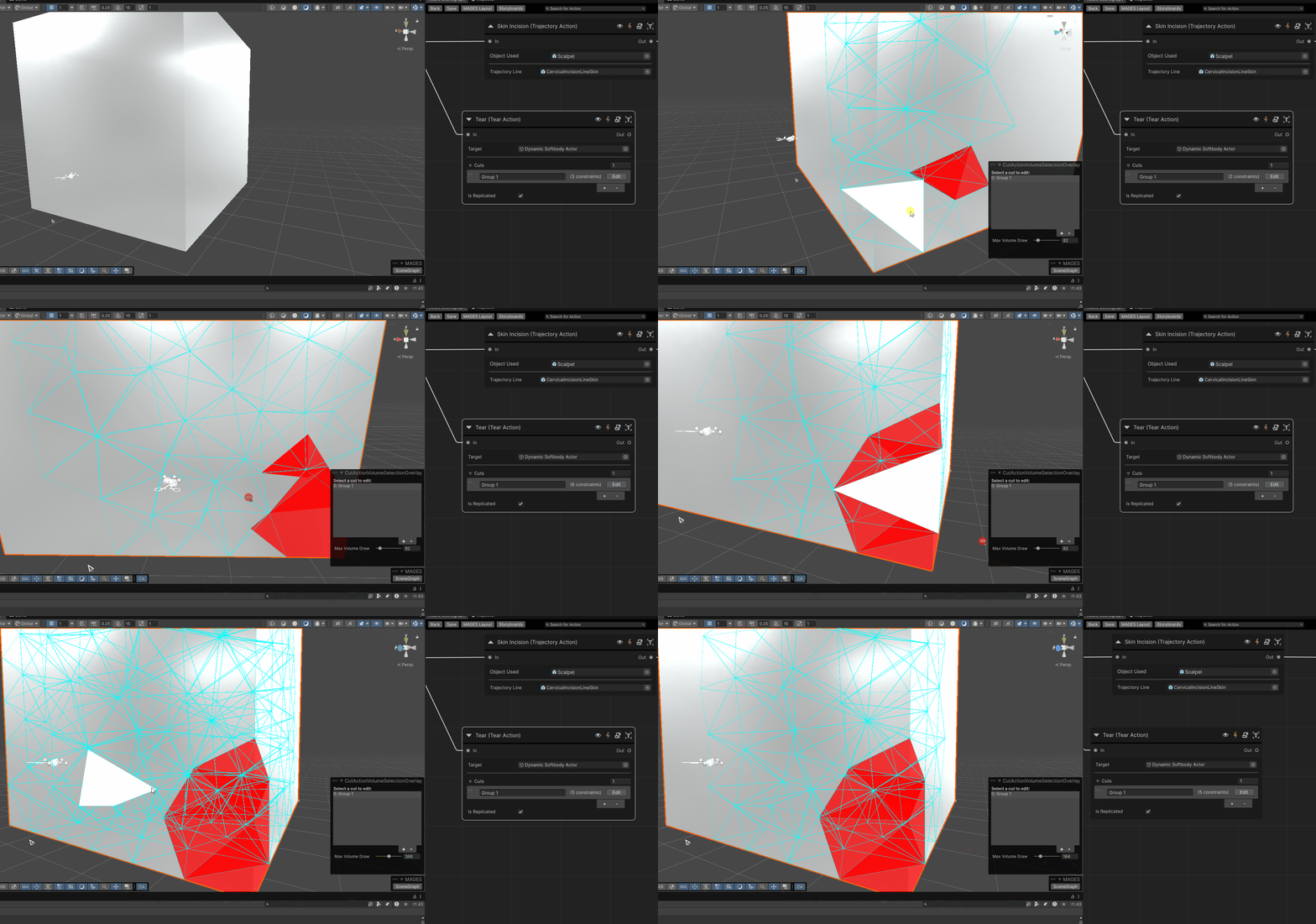
Press the Edit button next to a cut to enter the Edit Cut Action Volumes scene tool. A scene-view overlay lets you pick which cut you are editing and tune Max Volume Draw. In the scene view:
In-range, unselected volumes are drawn as a translucent cyan wireframe.
Selected volumes are filled solid red.
The volume under the cursor is highlighted white.
Left-click a volume to toggle it in or out of the active cut. Use the Max Volume Draw slider to limit how many nearest-to-camera volumes are drawn and made interactable, which improves scene-view performance on dense meshes; already-selected volumes stay drawn and clickable regardless of this limit. Your selection is written back to the active cut automatically.
Inspector Properties
Property |
Description |
|---|---|
Target |
Reference to the deformable object whose tetrahedral volume constraints will be cut. |
Cuts |
A list of cuts (volume-constraint groups) that must all be fully torn for the action to complete. Shown only in advanced mode. Each entry has a Description and a set of Volume Constraints. |
Runtime Flow
During runtime, the action behaves as follows:
The action resolves the Target and ensures it has a Volume Constraints Destruction Detector.
Each authored cut is registered as an observed volume-constraint group on the detector, and the action subscribes to its destruction event.
As volumes are torn during play, the detector re-fires the event for the affected group. On each fire the action re-checks the whole group; a cut is counted as torn only once every volume constraint in it has been destroyed.
When every authored cut has been fully torn, the action completes and tears down the runtime groups and listeners it injected into the detector.
Note
If the action defines no cuts, it completes immediately. A cut that contains no volume constraints is treated as already torn and completes immediately (with a warning). An authored volume-constraint index that is out of range for the target’s mesh is treated as already destroyed (with a one-time warning), so a stale index can never deadlock a cut.
Ghost Effect
Tear Action supports an optional ghost effect that shows the user where to cut. When a Ghost Effect is attached to the action and configured to show on the target, the action spawns one flat, camera-facing translucent disc per volume constraint in every cut, centred on that constraint’s particles. Each disc removes itself the moment its own constraint is torn, and any remaining discs are cleared when the action is performed or undone. The discs use a dedicated overlay material that draws over everything else, so they remain visible through the deforming mesh and any occluders.
Usage Notes
If the Target cannot be resolved, the action fails to initialize.
The target must expose a
BasePhysicsActorwith a valid simulation mesh; the detector is added at runtime if missing, but a non-deformable target cannot host one.A resolvable Volume Constraints Destruction Detector must exist on the target hierarchy while authoring so the scene selection tool can display and pick volumes.
All authored cuts must be fully torn before the action completes; partially torn cuts do not count.
Performing or undoing the action removes only the groups and listeners this action added to the detector, leaving any pre-existing detector configuration intact.