Rigidbody Actor
Rigidbodies are used to simulate rigid objects. In order to create a rigidbody from a tetrahedral mesh you need:
Create a Simulation Mesh from the tetrahedral mesh.
While creating the simulation mesh from the source tetrahedral mesh with the tool described here, you must set the Shape Matching Constraints Generate property to OnePerParticle, and the other Constraints Generate options to DontGenerate. This will create a simulation mesh with only Shape Matching constraints, which is suitable for simulating a rigid object.
Create a RigidbodyActor and assign the Simulation Mesh.
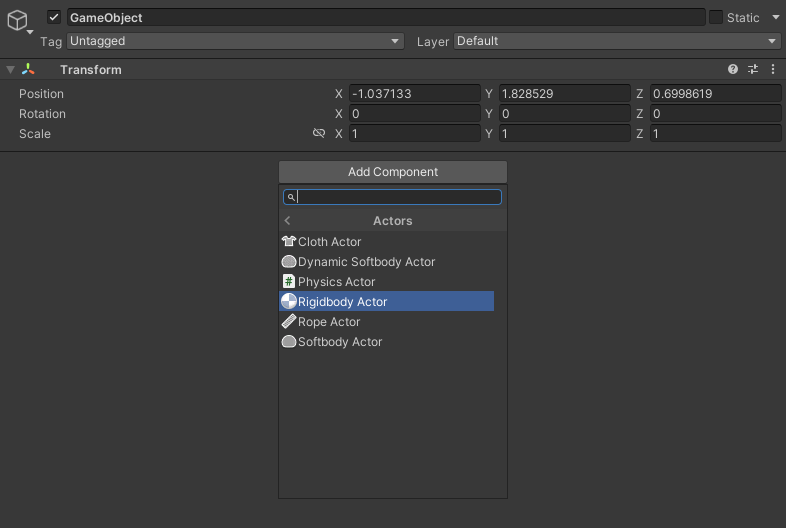
Create an empty GameObject and add a RigidbodyActor component to it by clicking Add Component > MAGES > Mesh Deformations > Actors > Rigidbody Actor in the inspector
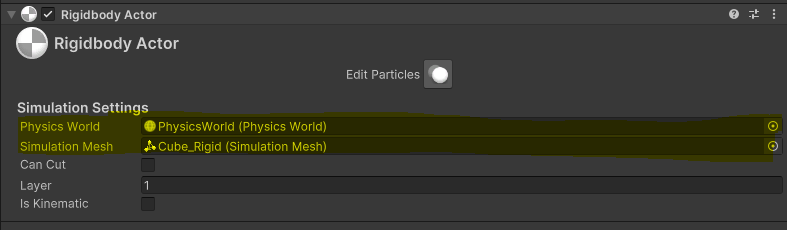
Assign the Simulation Mesh and a Physics World to the RigidbodyActor component
Press Edit Particles in the inspector to edit particles in the Scene view.
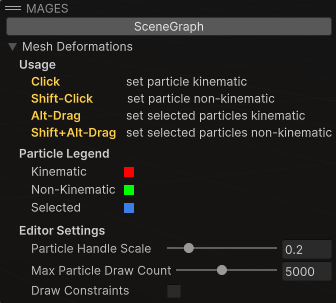
Instructions
Left click: make particles kinematic.
Shift + left click: make particles non-kinematic.
Alt + drag: marquee-select particles and make them kinematic.
Shift + Alt + drag: marquee-select particles and make them non-kinematic.
Particle Ledger
Red: kinematic.
Green: non-kinematic.
Blue: selected.
Configuration Settings
Particle scale: How big particles are, helping with the visualization.
Particle count: How many particles show. Restricting the number of particles shown can help with performance when editing large meshes.
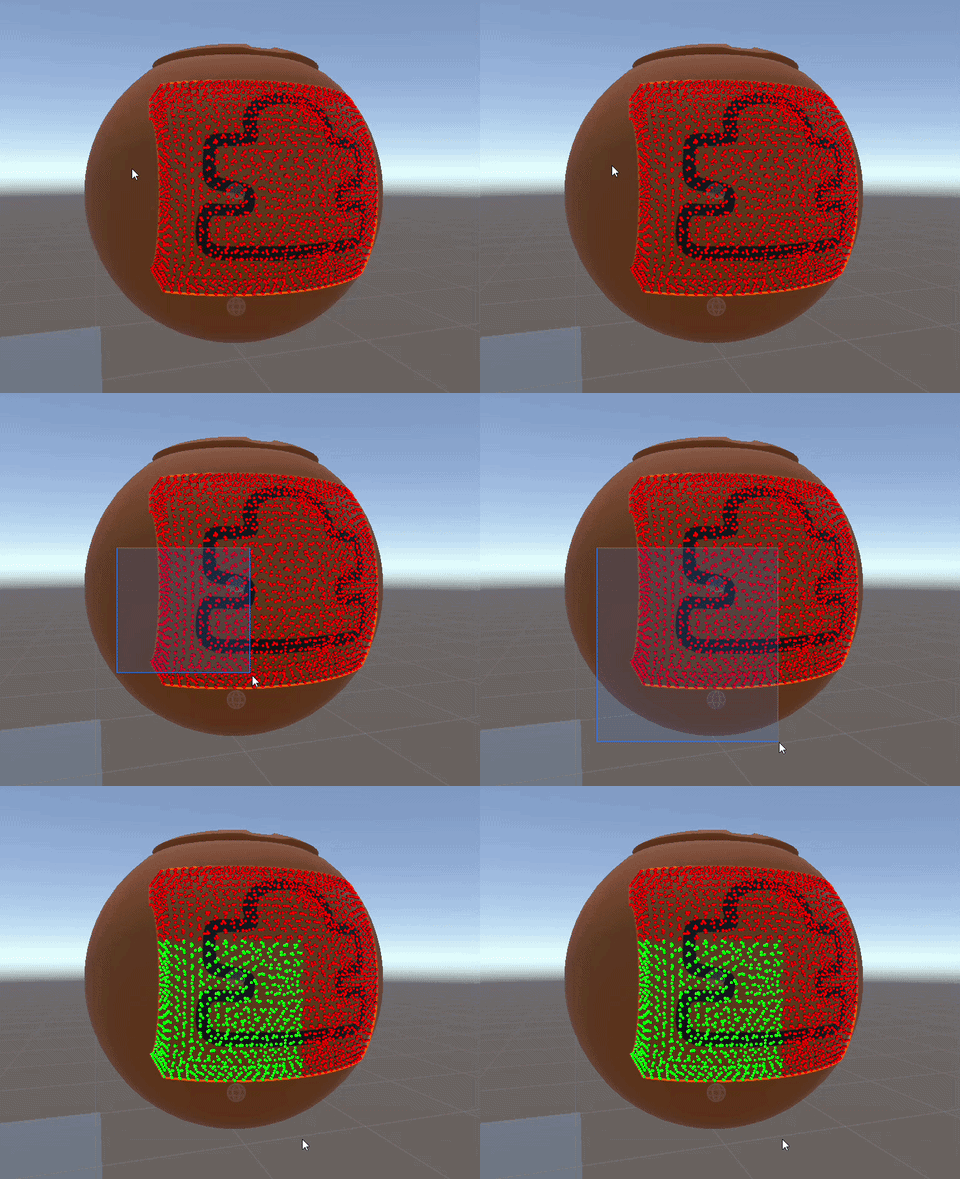
Marquee Selection can help you select multiple particles at once. You can hold the Alt key and drag to marquee-select particles and make them kinematic, or hold Shift + Alt and drag to marquee-select particles and make them non-kinematic.
Render the rigidbody.
To render the rigidbody, you can add a MeshFilter and a MeshRenderer component to the GameObject and assign a mesh to the MeshFilter and a Material to the MeshRenderer.
Note
The mesh assigned to the MeshFilter should match the outer surface of the tetrahedral mesh used for generating the simulation mesh of this object in order for the collisions to be accurate.