Install Custom Packages
With an ORamaVR Pro subscription, ORamaVR may occasionally provide custom Unity packages to address specific problems or deliver targeted features for your project. Follow this guide to install them.
These packages are distributed as a single zip file containing one or
more Unity tarballs (.tgz files) that you import directly into
your Unity project.
How to Install
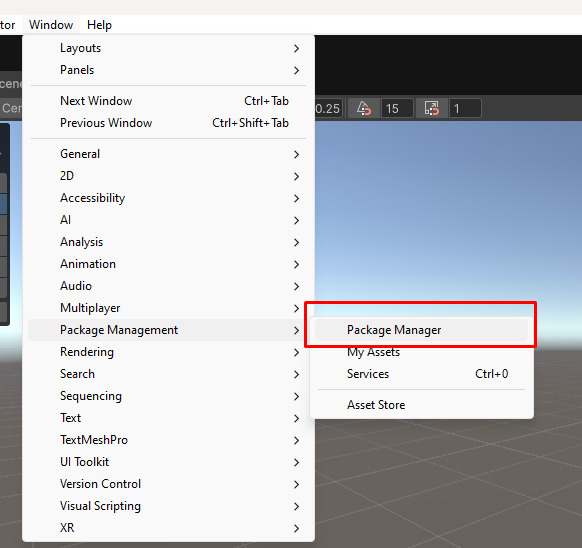
Open the Unity Package Manager through Window > Package Management > Package Manager:
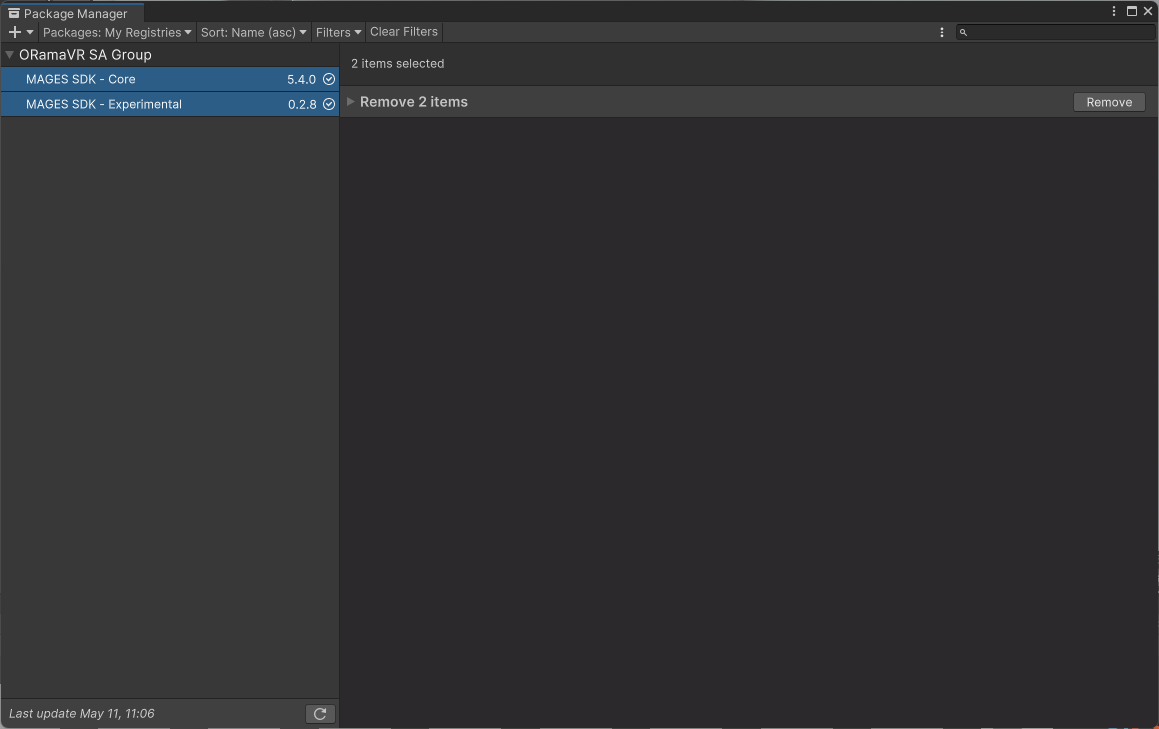
The custom packages come as Unity tarballs that bundle Creator together with the Pro Feature modules. In Unity Package Manager, if you have previously installed Creator, uninstall it:
The software is provided as a single zip file containing multiple tarballs (files with a .tgz extension), which must be
extracted first and then imported into Unity.
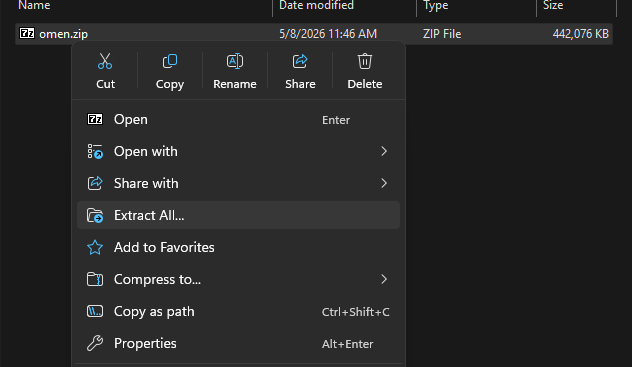
First extract the zip file:
The newly created folder should look like this:

In this case, we have new versions of the ‘core’ and ‘experimental’ packages.
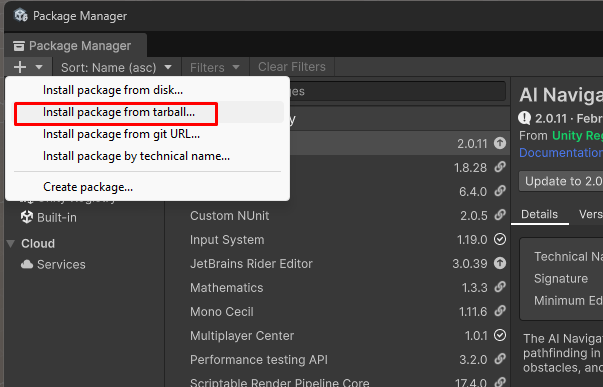
For each file that was extracted, click on the ‘+’ button and choose “Install package from tarball”: