Interaction System Advanced Settings
The Interaction System Module inside Advanced Settings in the Creator Panel contains several options to configure the Interaction System.
This is the complete list of advanced settings. Automatic Player Rig Setup, Turn Mode and the vignette options are grouped under the Locomotion Settings foldout. The Snap Turn Angle and Smooth Turn Speed options only appear for the turn mode that uses them.
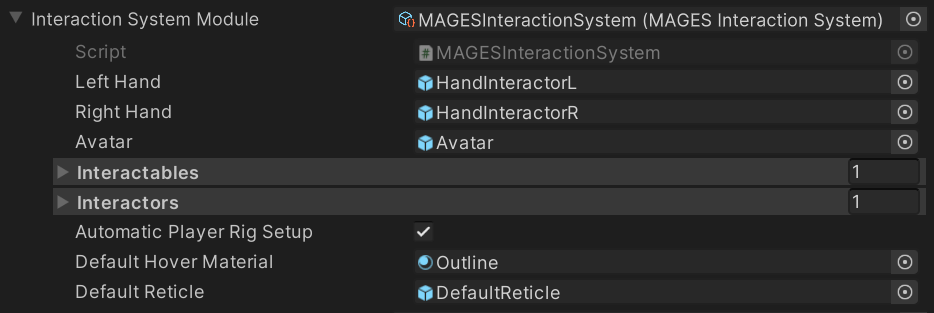
Interaction System Module in Detail
Option Name |
Explanation |
|---|---|
Script |
The Interaction System Module implementation Script. |
Left Hand |
The gameobject representing the left hand of the player. |
Right Hand |
The gameobject representing the right hand of the player. |
Avatar |
The gameobject representing the avatar of the player. |
Interactables |
The available Interactable types. You can extend it and add yours. They are called like this |
Interactor |
The available Interactor Types. Again, you can extend them. You call them like this |
Automatic Player Rig Setup |
If true, the player rig will be automatically setup when the scene starts. The HandInteractors will be attached automatically and locomotion will be added. |
Turn Mode |
How the user turns with a spatial (XR) driver: in fixed increments with the Snap Turn Provider (default), or continuously with the Smooth Turn Provider. Non-spatial drivers always turn smoothly. Only used with Automatic Player Rig Setup. |
Snap Turn Angle |
The angle in degrees by which the rig rotates on each snap turn. Only shown and used when Turn Mode is Snap. |
Smooth Turn Speed |
The speed in degrees per second at which the rig rotates while smooth turning. Only shown when Turn Mode is Smooth. Non-spatial drivers, which always turn smoothly, use this speed in either mode. |
Use Locomotion Vignette |
Adds a Locomotion Vignette to the player rig, that narrows the field of view while the rig is moving or turning, to reduce motion sickness. Off by default. Only used with Automatic Player Rig Setup. |
Locomotion Vignette Settings |
The default look and timing of the locomotion vignette. |
Default Hover Material |
The default material to be applied to interactables when hovered over. |
Default Reticle |
The reticle to use when hovering over interactables that do not provide their own. |